Getting started
Download Quill from the download page and run the installer. On Windows the user installer needs no admin rights. Quill opens with a welcome screen that walks you through import, sign in and model choice.
Import from VS Code
On first launch Quill offers to import your VS Code setup: extensions, settings.json, keybindings.json, snippets and theme. You can run it again later from the command palette with Ctrl Shift P and Import VS Code settings.
Extensions install from the Open VSX registry. Almost every popular extension is there.
Account and plans
Click Log in in Quill settings. Your browser opens the Quill website, you log in or create an account, approve the connection, and the browser sends you back to the editor already signed in. You never paste a password into the editor.
Your plan and usage show under Settings → Plan & Usage. To sign an editor out remotely, open your account page and disconnect it.
Models and keys
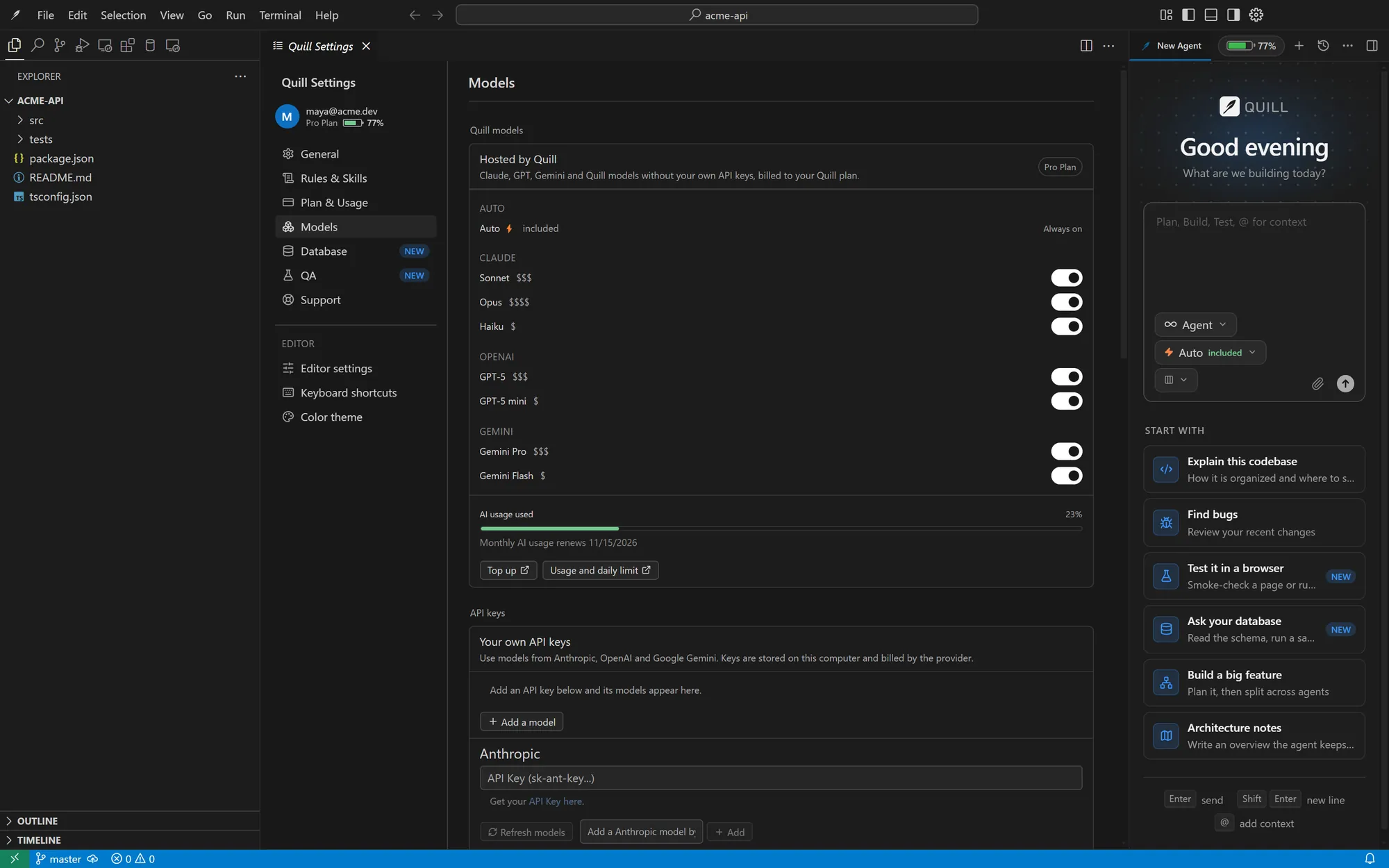
Open Settings → Models. You can mix three kinds of models:
- Auto and the hosted models in your plan. No keys needed. Auto is the default; the menu shows how capable each model is with 1 to 5 dots, and models outside your plan are greyed out. Each reply shows the share of your plan it used.
- Your own keys for Anthropic, OpenAI or Gemini, marked with a key icon. Keys stay in your system keychain and are never exported. Your Claude Code plan works the same way, with your own login.
- Local models through Ollama or LM Studio. Nothing leaves your computer.
Choose a model per feature: a small, fast model for completions and a stronger one for chat and the agent.
Chat
Press Ctrl L to open the chat panel. The current file is included automatically. Type @ to add more files or folders. Code blocks in answers have an Apply button that turns them into a diff in your file.
Quick edit
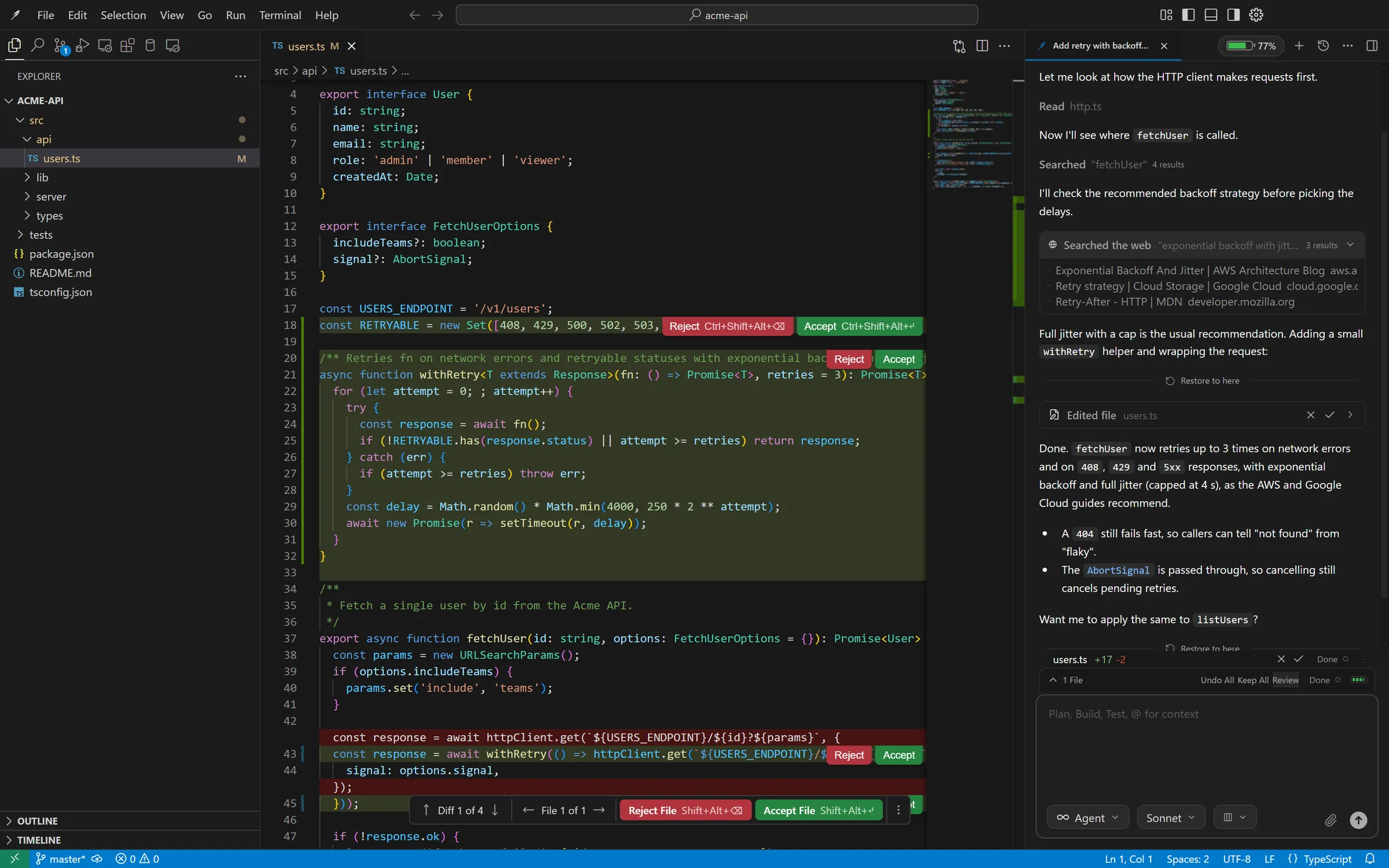
Select code and press Ctrl K. Describe what should change, press Enter, and the edit appears as an inline diff. Accept or reject each block, or the whole edit.
Agent mode
Switch the chat to Agent to hand off a whole task. The agent can read and search files, create and edit files, and run terminal commands. Commands that change your system ask for approval first. Every file change shows as a diff you can review before you keep it.
npm test when done”. It will iterate until the tests pass.Chat modes
Pick a mode from the menu under the prompt box:
- Ask answers questions about your code and changes nothing.
- Plan reads the code and writes a step-by-step plan you can approve before anything changes.
- Agent plans, edits files and uses tools until the task is done.
- Multi-Agent splits a big task across agents that work in parallel.
- QA tests your app in a real browser.
If you ask for a code change in Ask or QA mode, Quill counts down 5 seconds and moves the message to Agent mode. Click Stay to keep the mode you were in.
Approvals and auto-approve
The agent asks before it runs a command, calls a tool or writes to your database. In Settings you can auto-approve the kinds of actions you trust, such as file edits or safe commands. After the trial ends, only file edits can be auto-approved; everything else asks first.
Self-check and verify
Set a verify command, such as npm run verify or pytest. After it edits, the agent runs the command, reads what failed and fixes it before it reports back. Self-check is on Pro and Max.
Feature Tree
The Feature Tree is a map of your app by feature (modules, pages, actions and fields) kept in .quill/feature-tree.yaml. Start it with the Map the features card, or open the Feature Tree tab. The agent reads the tree in every chat:
- Before it changes code, it names the part of the tree it is about to work in and waits for you to confirm. You can untick related pages or say it picked the wrong part.
- When the task is done, it proposes the changes to the tree as a diff. Quill writes the file only after you approve.
The tab shows the tree as a graph, a list or YAML. Click a node to see its details, the code behind it and its history. Nodes that are planned or being built have a dashed border, and the branch the current chat is working on is highlighted.
QA in a real browser
Choose QA mode, or the Test it in a browser card, and describe what to test, such as “sign up, then log in”. Quill opens your app in its own browser, goes step by step like a user, reads console errors and failed requests, and reports each step as pass or fail, with a screenshot when something breaks.
- App URL: leave it empty and the agent uses
.claude/launch.jsonor starts your dev server. - Screen: Desktop, Phone or Tablet. Phone and tablet also check for cut-off text, overlaps and sideways scrolling.
- Fix what fails: off, the agent only tests and reports. On, it fixes the code and runs the same check again.
The browser uses a fresh profile, so it never sees your own sign-ins. It needs Node.js and Chrome, and the Let the agent use a browser switch in Settings > QA. QA is on Pro and Max.
Multi-Agent
For a big task, the lead agent writes a short contract and a plan that splits the work between child agents, each with its own files and verify command. You can edit the plan before it runs. Each child works in its own copy of the repo; the lead reviews and merges the results. Multi-Agent is on Pro and Max.
Browser, MCP servers and web search
On Pro and Max the agent can open your dev server in a browser to debug UI, connect to MCP servers (databases, issue trackers, internal tools) and search the web for docs and error messages.
Project rules
Write how your project works in .quill/rules.md, or split it into files in .quill/rules/: commands, conventions, what not to touch. Every chat and agent run follows them. Commit them so your whole team shares them. Quill can import Cursor rules too.
Chat folders and labels
Drag a chat into a folder in the Agents panel, or right-click it to add a label. Bug fix, Feature, Refactor, Question, Testing and Docs come ready, and you can add your own. Turn on Auto-label chats and Quill adds labels by itself when a chat finishes, marked “auto”. It only picks labels you ticked, and it uses keywords from your first message, so it costs no AI usage. Folders and labels belong to the project.
Keyboard shortcuts
| Action | Windows / Linux | macOS |
|---|---|---|
| Accept completion | Tab | Tab |
| Open chat | Ctrl L | Cmd L |
| Quick edit | Ctrl K | Cmd K |
| Command palette | Ctrl Shift P | Cmd Shift P |
| Quick open file | Ctrl P | Cmd P |
Privacy
Quill only sends the code needed for a request, and only to the provider of the model you picked. With local models nothing leaves your machine. Read the full privacy policy.